PDF to JPEG online, free and private

Loading the tool…

PDF, image and document tools

Merge PDFs, convert images, extract text and more.

Popular tools

Convert PDF pages to JPG images

PDF to JPG turns the pages of a PDF into JPG pictures in your browser. Pick all pages or a range, and choose the render quality.

How to use PDF to JPEG

  1. Choose the PDF file.
  2. In Pages, type a range such as 1-3, 5, or all.
  3. Pick Standard, Detailed or High resolution under Render quality.
  4. Run the tool and download each image.

Good to know

  • Accepts .pdf files.
  • One JPG is made per selected page.
  • Higher quality means larger files and more memory use.

Free to use, with no account needed. Your files are processed in your browser and are not uploaded unless you choose an optional private server mode.

Questions about PDF to JPEG

Can I convert only some pages?
Yes. Type the pages you want, such as 1-3, 5, or leave it on all.
Which quality should I choose?
Standard is fastest. Choose Detailed or High resolution when you need to zoom in or print.
Are my PDF pages uploaded?
No. Pages are rendered in your browser unless you choose an optional private server mode.

Related tools

Reviewed 2026-11-18. How your data is handled

All tools

Choose a category or search for a tool.

Loading tools…

See the result. Try the tool.

Real sample files, processed with the same tools you use.

1 of 3

Merge PDFs

Arrange your files and combine them into one PDF.

Merge PDF
Before2 separate PDFs
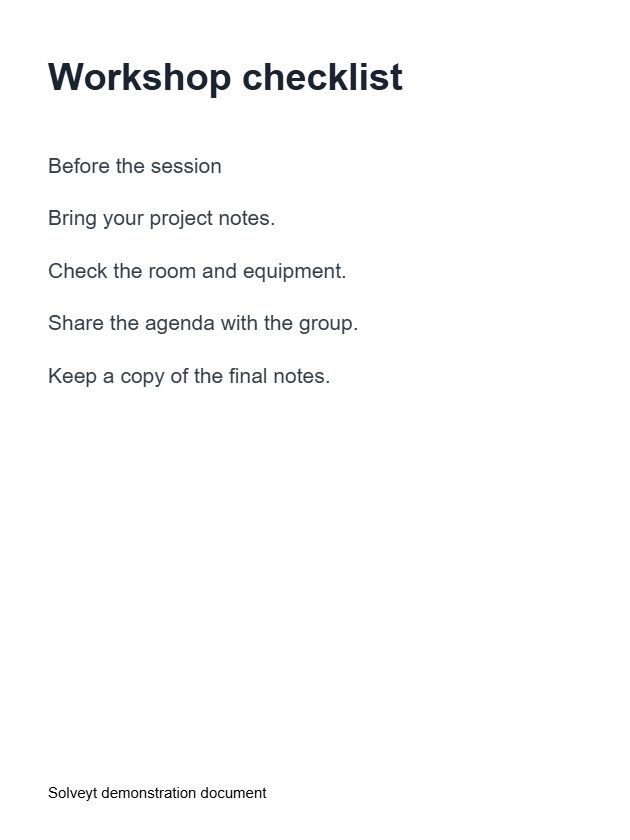
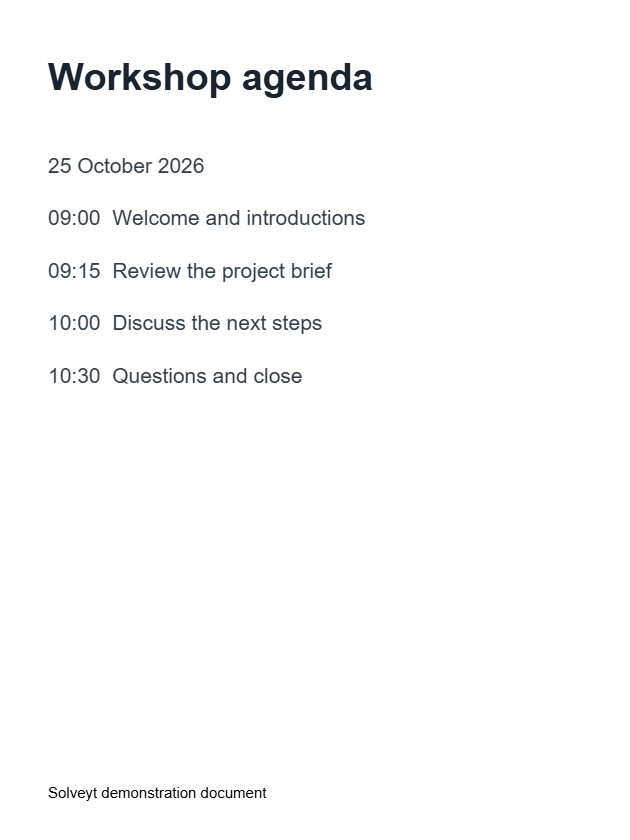
Workshop agenda PDF pageWorkshop checklist PDF page
After1 PDF · 2 pages
First page of the merged PDFSecond page of the merged PDF

Convert images

Save images as JPG, PNG or WebP.

Convert images
BeforePNG image
Earth photographed by the Apollo 17 crew, PNG input
AfterJPEG image
The same Earth photograph converted to JPEG by Solveyt

Photo: NASA / Apollo 17 crew. Source

Read scanned text

Extract printed text and correct it in the preview.

Scan to text
BeforeScanned page
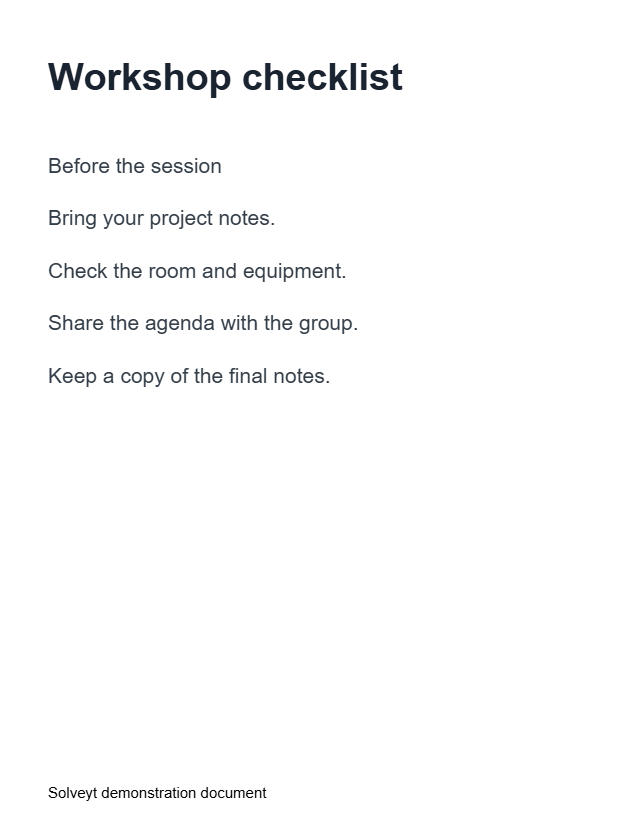
Printed workshop checklist used as the OCR input
AfterExtracted text
Workshop checklist
Before the session

Bring your project notes.

Check the room and equipment.
Share the agenda with the group.
Keep a copy of the final notes.

Solveyt demonstration document

Find tools by file type

How to use a tool

  1. Choose a tool

    Search by task or browse a file category.

  2. Add and preview

    Add your files, adjust the options and review the preview.

  3. Save the result

    Download your finished file, or save a batch as ZIP.

Using the tools

Can I process several files at once?

Use Add more files to build a batch. In tools that combine files, drag the handles or use the move buttons to set their order.

Can I choose specific PDF pages?

Use Split PDF to keep selected pages. Use Reorder PDF pages to change their order, or Remove PDF pages to delete them. Page selection accepts ranges such as 1-3, 5.

Which image formats can I export?

Image tools export JPEG, PNG and WebP. Select the output format in Options. The accepted input types and limits are listed in each tool.